

QA Check Settings
Esta página aún no está disponible en tu idioma.
Translate in CrowdinQuality assurance (QA) checks scan translations for language-specific formatting that doesn’t match the source string or won’t fit the UI. Typical issues are missed commas, extra spaces, and typos.
Crowdin highlights the issues it finds in the Editor, so review and resolve them before you build the project and download translations.
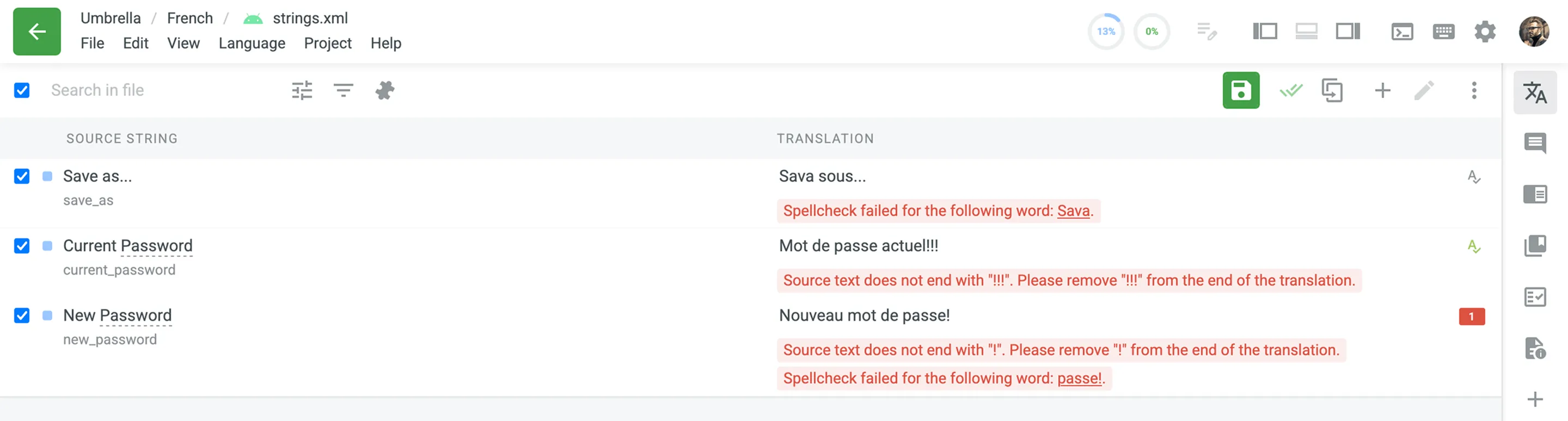
In the QA Checks section, you choose which types of QA issues Crowdin highlights during translation.
By default, QA checks are enabled. To select the needed QA checks in your project, follow these steps:
- Open your project and go to Settings > QA Checks.
- Ensure that Enable QA Checks is selected.
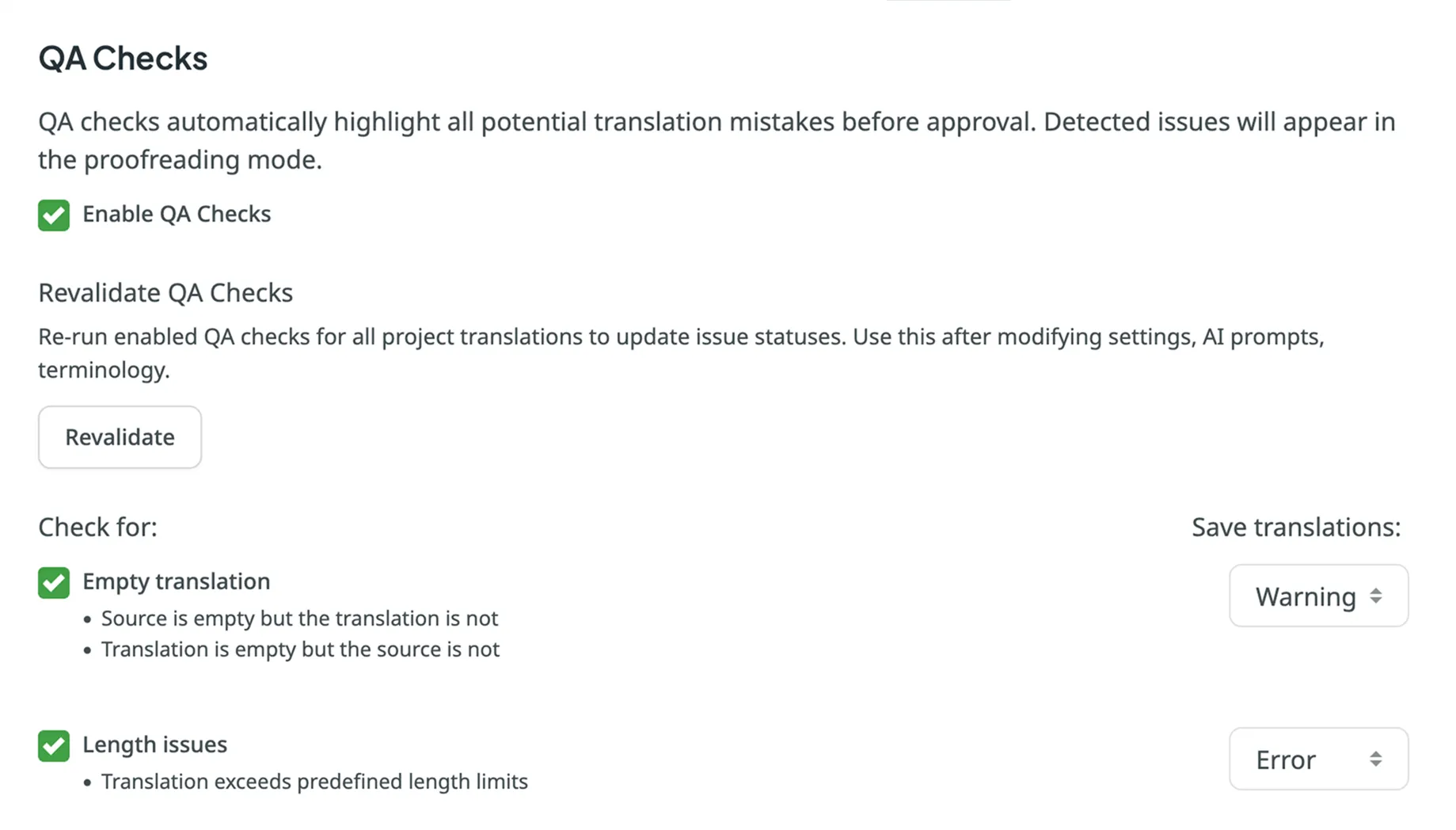
- Select the QA check types according to your preferences.
- For each selected QA check type, choose whether translations with QA issues can be saved: Error or Warning.
- Warning: Translators see the QA issue along with suggestions for fixes and can still save the translation with Save anyway.
- Error: Translators see the QA issue along with suggestions for fixes and can save the translation only after resolving it.
- Scroll down to the bottom of the QA Checks list and click Save.
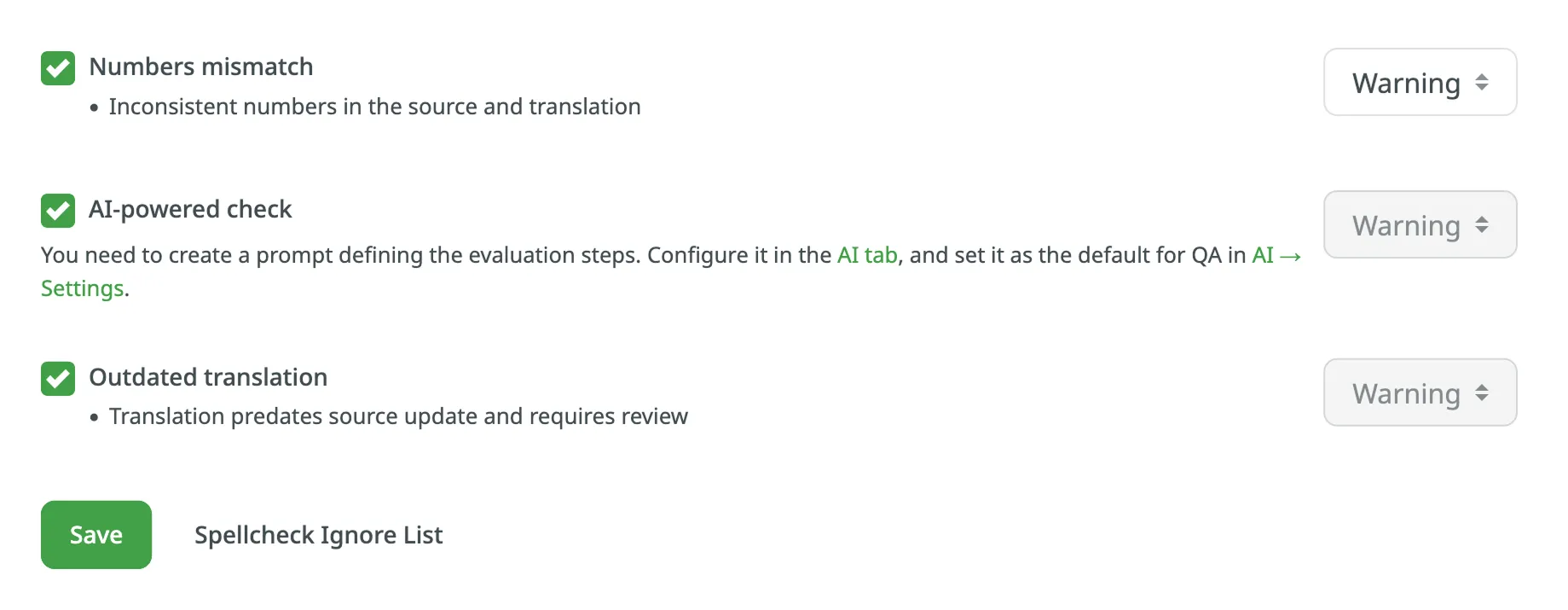
A few checks come with a fixed setting:
- Duplicate translation, FTL syntax, and MDX syntax are always enabled and always applied as an Error.
- ICU syntax is always enabled, and you choose whether it’s applied as an Error or a Warning.
- Spelling mistakes, AI-powered check, and Outdated translation are always applied as a Warning, and you choose whether they’re enabled.
Enabled checks run in the background and scan the translations for potential QA issues.
Use the Revalidate button to re-run enabled QA checks for all project translations and update issue statuses. Use it after you change settings, AI prompts, or terminology.
Once revalidation starts, the button is disabled and a Cancel button appears. Crowdin shows a notification when the process is complete.
Empty translation: The translation is empty while the source string isn’t, or the source string is empty while the translation isn’t.
Length issues: The translation is longer than the character limit set for the string.
Tags mismatch: The HTML tags in the translation don’t match the ones in the source string, or their id attributes or CDATA sections differ.
Spaces mismatch: The spaces in the translation don’t match the ones in the source string, including leading and trailing spaces and newlines, repeated spaces, spaces around special characters, and non-breaking spaces.
Variables mismatch: The placeholders in the translation don’t match the ones in the source string.
Punctuation mismatch: The punctuation marks in the translation don’t match the ones in the source string, including the spacing before and after them.
Character case mismatch: The character case in the translation doesn’t match the source string, either at the start of the string or in several capitalized characters in a row.
Special characters mismatch: The special characters in the translation don’t match the ones in the source string, such as brackets, quotes, markup entities, new paragraphs, and currency signs.
“Incorrect translation” issues: The translation has an open issue that a project member reported with the Current translation is wrong type.
Spelling mistakes: The translation contains words that aren’t present in the dictionaries Crowdin supports.
ICU syntax: The translation breaks the ICU message syntax, is missing the other plural form, or uses a different structure than the source string.
Consistent terminology: The translation doesn’t use the glossary term for a source word, or uses a term marked not recommended or obsolete in the glossary.
Duplicate translation: The translation duplicates an already existing translation.
FTL syntax: In FTL files, the translation breaks the FTL syntax, or it adds or drops the placeholders and references the source string uses.
Android syntax: The translation doesn’t keep the placeholder tags (<xliff:g>) that the source string uses.
Numbers mismatch: The numbers in the translation don’t match the ones in the source string or are missing from it.
AI-powered check: The translation doesn’t meet the evaluation criteria defined in your AI prompt. Configure the prompt before you enable the check.
Read more about Configuring AI-powered check.
Outdated translation: The translation predates a change to the source string, so it may need to be revised.
MDX syntax: In MDX files, a line in the translation starts with import or export. MDX treats such a line as code instead of text.
The spell checker powers the Spelling mistakes QA check for supported languages, and you can manage the words it ignores per project.
Beyond misspelled words, the spell checker flags grammar, punctuation, and capitalization issues for supported languages, though coverage depends on the language.
Spellcheck explanations are shown in the target language you’re translating into, not in your interface language, so they read naturally for that language’s linguists.
If your project uses uncommon words that the spell checker doesn’t recognize, add them to the Ignore list to exclude them from the check.
This suits project-specific terminology such as brand names or proper nouns (for example, MyApp). The spell checker and the Glossary are separate features, so adding a term to the Glossary doesn’t add it to the Ignore list, and the Ignore list is where you exempt it.
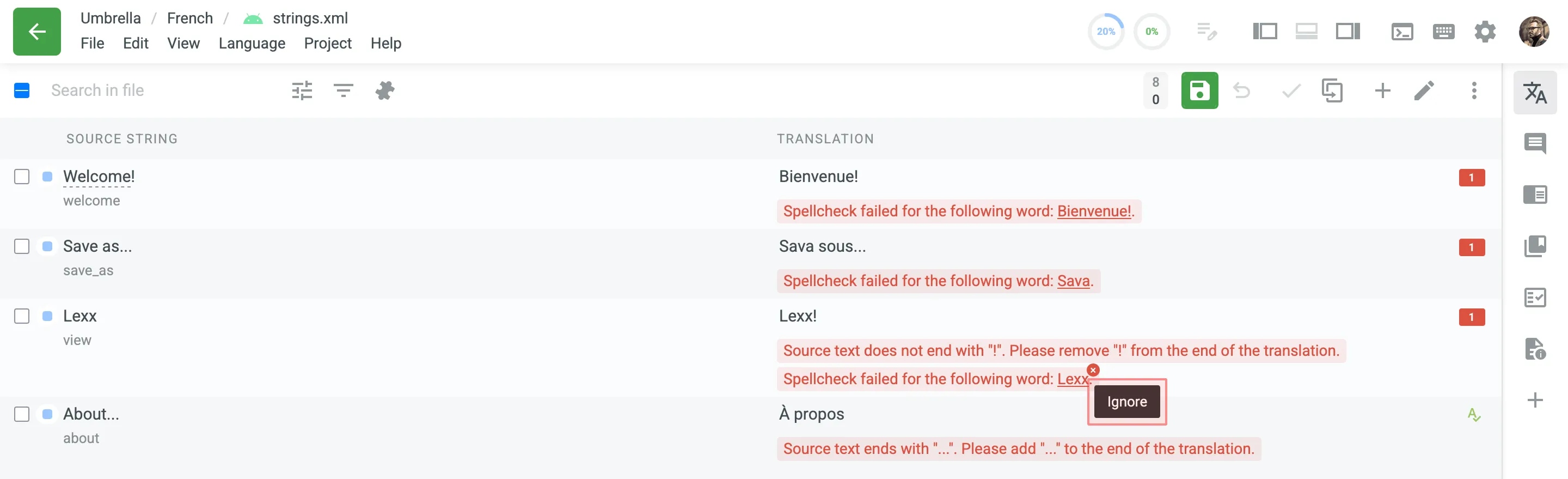
To review the words added to the Ignore list for the spell checker, follow these steps:
- Open your project and go to Settings > QA Checks.
- Click Spellcheck Ignore List at the bottom of the page.
The dialog that opens lists the ignored words, where you can filter them or remove them from the list.
When QA checks detect issues, indicators appear across the project interface so you can find the strings that need attention.
The QA check status shows one of the following:
- OFF: QA checks aren’t enabled.
- IN PROGRESS: The check is running.
- NO ISSUES: The check found no issues.
- ISSUES FOUND: The check found issues.
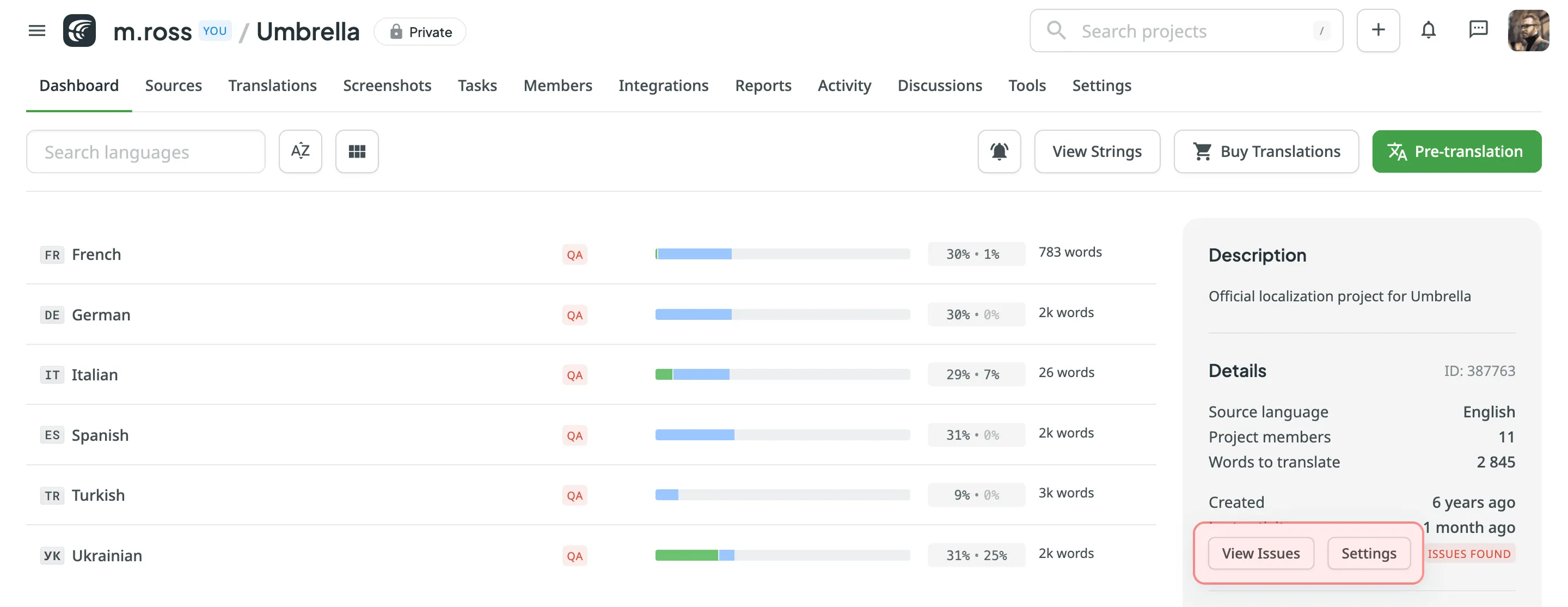
The ISSUES FOUND status appears in the Details panel on the right side of the project Dashboard. Click it to reveal two action buttons:
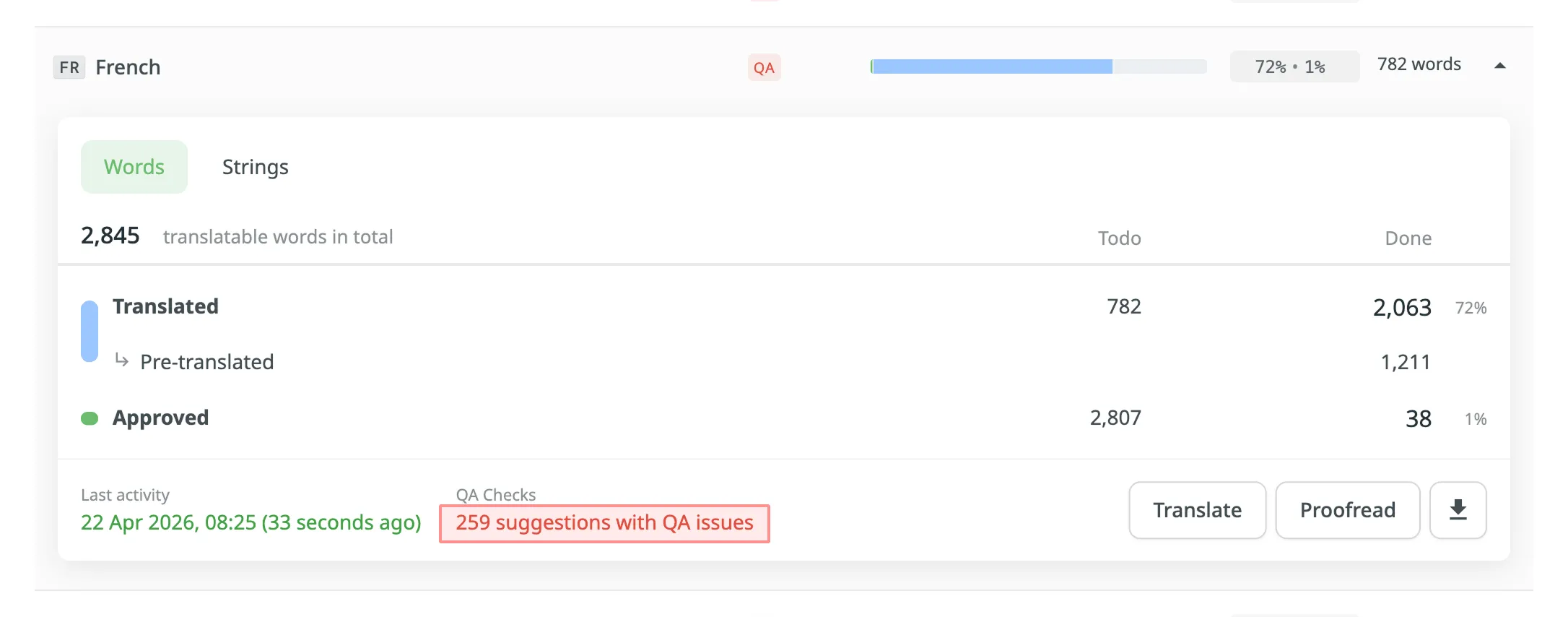
- View Issues: Expands the language row on the Dashboard to show the number of suggestions with QA issues.
- Settings: Takes you directly to Settings > QA Checks.
In the expanded language row, click N suggestions with QA issues to open the Editor with the QA issues filter applied.
In the Editor, review the strings with QA issues in Side-by-Side mode. Approve the existing translations if they are correct, or make changes and then approve them.
Languages with unresolved QA issues are marked with a QA indicator on the project Dashboard, so you can see at a glance which languages contain them.
Files with unresolved QA issues are marked with a QA indicator on the language page. Hover over the indicator to see the number of issues found in that file.